How The HUD Works In Black Ops 7
Black Ops 7 made its official release last week, and it definitely expands on the Black Ops series. For instance, the Heads-Up Display (HUD) is completely customizable, from disabling certain elements of the HUD to reorganizing the HUD layout. Here’s a complete breakdown of how the HUD works and how to customise it to fit your playstyle.
What is the HUD in Black Ops 7?
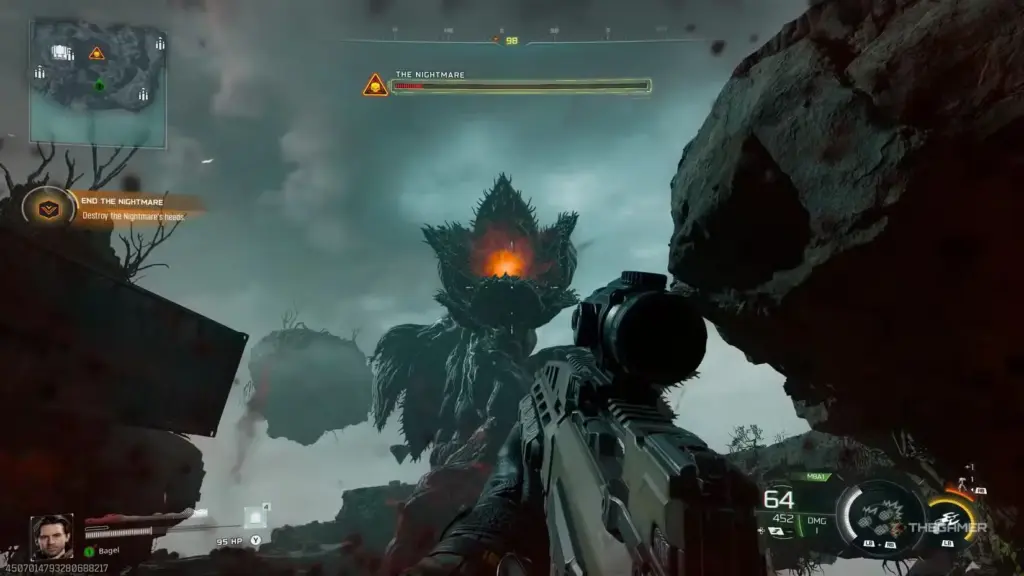
The HUD is the in-game dashboard of Black Ops 7, essentially what you load into when you log in to your online account. It shows all of the important information about your account. For example, the HUD will show your:
- Health & Armour Bars
- Mini-Map / Radar
- Ammo Count
- Objective Markers
- Ability Cooldowns
- Score & Killfeed
The best part of the HUD is that it is completely customizable. Here are all the different types of customisations you can do to personalise your HUD.
Customizations to Core Settings
| HUD Bounds | Set the margin for HUD elements. |
|---|---|
| Scale | Adjust the size of the HUD. |
| HUD Widget Visibility | Toggle certain HUD elements, like the compass and minimap. |
| Vehicle HUD Prompts | Choose when the vehicle prompt fades. |
| Radar | Remove 2D map information to make enemy markers more visible. |
| Minimap Rotation | Rotate the minimap when you look around. |
| Compass | Displays your cardinal direction. |
HUD Layouts
| Layout | Style | Widget Positioning |
|---|---|---|
| Standard | Default layout, displaying each core element. | Minimap: top left. Compass: top centre. Equipment: bottom right. Player icon: bottom left. Radio: right side. Objective update: below the minimap. |
| Inverted | Flips the Standard layout. | Minimap: top right. Compass: top centre. Player icon: bottom right. Equipment: bottom left. Radio: left side. Objective update: below the minimap. |
| Classic | Black Ops 2-inspired HUD. | Minimap: top right. Compass: top centre. Player icon: bottom left. Equipment: bottom right. Radio: below the minimap. Objective update: left side. |
| Portrait | Core information presented vertically, designed for mobile video apps like TikTok and Instagram Reels. | Compass: top right. Player icon: bottom centre, slightly left. Equipment: bottom centre, slightly right. Radio: right side. Objective update: left side. |
| Drone | Centralised layout inspired by remote-controlled vehicle HUDs. | Minimap: top centre. Compass: bottom centre. Player icon: centre left. Equipment: centre right. Radio: right side. |
| Scout | Moves objective details to the bottom of the screen. | Minimap: bottom left. Compass: bottom centre. Player icon: next to the minimap. Equipment: bottom right. Radio: right side. Objective update: top left. |
| Target Tracker | Prioritises enemy tracking by consolidating navigation info to the lower centre. | Minimap: bottom centre. Compass: below minimap. Player icon: bottom left. Equipment: bottom right. Radio: right side. Objective update: top left. |
| Central Command | Reduces eye movement by positioning navigation and loadout details towards the centre. | Minimap: bottom centre. Compass: top centre. Player icon: right to the minimap. Radio: right side. Objective update: top left. |
| Frontline | All core information is lined along the bottom centre of the screen. | Minimap: bottom centre. Compass: below the minimap. Player icon: left of the minimap and compass. Equipment: right of the minimap and compass. Radio: right side. Objective update: top left. |
Disabling Core Elements and HUD Info Visibility Menu
| Core Elements | HUD Info Visibility Menu |
| Loadout Information. | Player names. |
| Minimap Visibility. | Player & Streak Toasts. |
| Compass. | Medals & Notifications. |
| Score Streak Widget. | Score Feed. |
| Mission Tracker. | Elimination Feed. |
| Gobblegums. | Elimination ID. |
| Squad Widget. | In-Game Text Chat. |
| Round Numbers. | |
| Perks. |
HUD Themes and Interface Colours
You can also change the theme of your HUD to make it even more personalized to your style. Currently, there are only two themes available for players: Standard and Aetherium. It is also expected that more themes will become available in future updates of the game. Another customization you can make is changing interface colors, found under Interface > Readability. If customization is important for you, or even if you’re curious about all the different customizations you can play around with, you should definitely check out Black Ops 7, which is out now.